
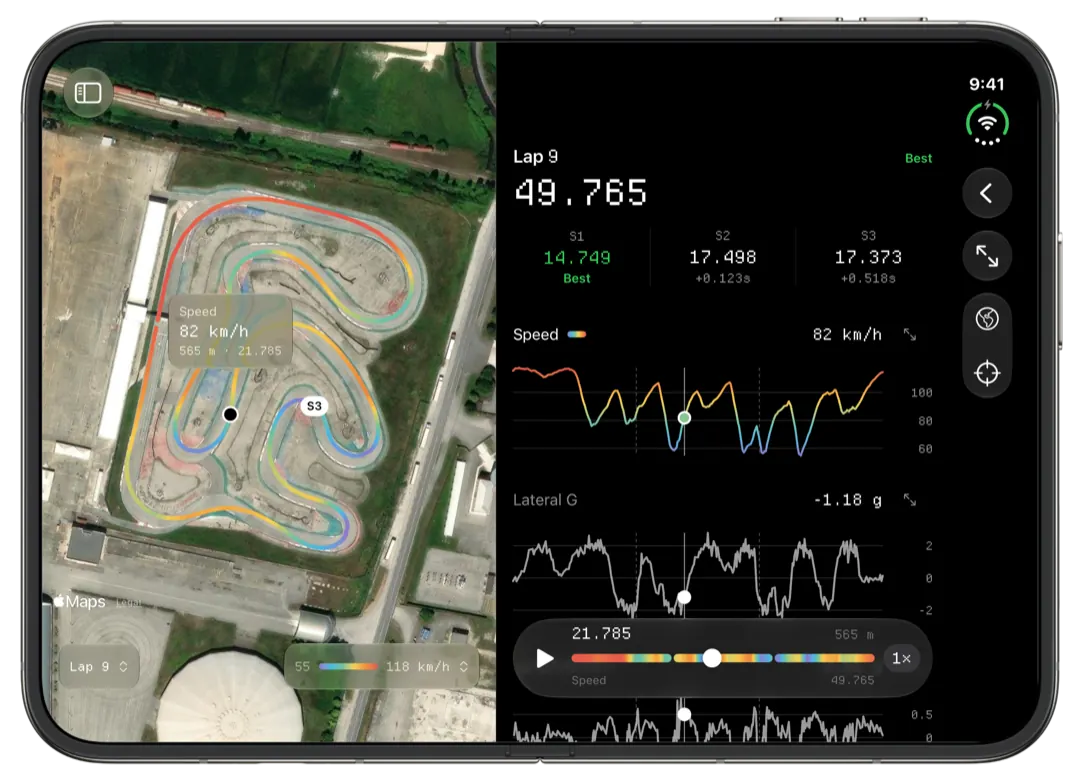
Slicks splits every lap of an AiM or MyChron session into equal-distance sectors and shows, for each one, the best time any lap of the session went through it and how far your fastest lap was from that. You see which part of the lap is costing you before you look at a single chart, on an iPhone, iPad or Mac.
What an equal-distance sector is
Slicks measures each lap along its GPS line and cuts it into pieces of the same length. On a 900 m track with three sectors, each one is about 300 m. The cuts land wherever the distance puts them: sometimes on a straight, sometimes halfway round a hairpin.
That can feel odd if you are used to sectors named after corners, but it has a real advantage. Every sector is the same stretch of track on every lap, and nobody has to place the lines by hand. The sector markers are drawn on the track map, so you always know where each one starts.
If a sector boundary splits the corner you care about, change the count on the Mac. Going from three sectors to four moves every line.
Reading your fastest lap, sector by sector
The Sectors page lists the session's best time through each sector and, beside it, your fastest lap's gap to that best. Three patterns come up again and again:
- One big gap, the rest near zero. Your fastest lap had one bad patch. You have already shown you can drive that sector faster, so this is the easiest time to find.
- Small gaps everywhere. Your fastest lap was close to your best in every sector. The time is no longer hiding in one place; it has to come from a better line or a setup change.
- Zero in a sector. Your fastest lap set the best there. Leave it alone for now.
The gaps add up to the difference between your fastest lap and your theoretical best. How that total works, and why it shifts with the sector count, is on the theoretical best lap calculator page.
Which sector to work on next
The biggest gap is the obvious answer, and usually the right one. Two checks before you commit to it:
- Was the best in that sector a fluke? Tap a few laps and look at their sectors against the session's bests. If only one lap was fast there, maybe a tow down the straight did it. If several laps were close to the best and your fastest was not, the time is real.
- Is it a sector you can change? A gap in the sector with the tightest corner is often driver time. A gap in the sector with the longest straight might be gearing or the exit of the corner before it.
Once you have the sector, narrow it down. The track map shows where the sector starts and ends, and time loss by corner ranks the individual corners. On an iPad or a Mac, the laps table puts every lap's sector times in columns, so you can run your eye down one sector for the whole session.
How many sectors to use
Three is the default, and a good one for most kart tracks. Each sector is long enough that its time means something, and you can compare the same three numbers across a whole race weekend.
On the Mac, the sector picker goes from 2 to 10. A few practical rules:
- Go up when you know which third of the lap is slow and want to find the corner in it.
- Come back down to three before comparing with earlier sessions, or the numbers won't line up.
- Treat very short sectors with caution. A sector of a few seconds is sensitive to small GPS differences.
Sector times on a shared link
When you share a session as a link, which takes Slicks Pro, the page it opens shows your best lap's sectors against the best in each, and the theoretical best, in any browser. That is enough for a coach or a parent at home to answer "where was the time?" without the file or the app. It never includes the original file, and you can stop sharing whenever you like.
What Slicks does not do with sectors
You can't place your own sector lines at braking points or corner names, and Slicks does not read the circuit's official sector times. A session recorded without GPS has no sectors at all, since there is no line to measure.
